
How to Connect Demio with Convertri Via API
Learn how to connect Demio with Convertri using the API. Our comprehensive guide provides step-by-step video and written instructions you need for a smooth setup and optimal results. Follow our detailed instructions for a successful connection
Why Integrate Demio with Convertri?
Integrating Demio with Convertri via API lets you automatically register leads for webinars and virtual events the moment they submit a form on your landing page.
It’s fast, reliable, and perfect for ensuring custom details captured are used to enhance follow-up and segmentation.
Whether you're a course creator, coach, or SaaS founder, we recommend it for marketers who want to streamline webinar registrations and stay in the loop with post-event actions.
Here’s how to set up Demio integrations, troubleshoot issues, and get the most out of your Demio webinars using Convertri’s powerful builder.
Video Tutorial:
Step-by-Step Instructions:
Activate Demio Integration
Integrating Demio with Convertri is easy. All you have to do is:
- In the Dashboard, click on Account, and then Integrations.
- Scroll down to Webinars. Click Setup over the Demio logo.
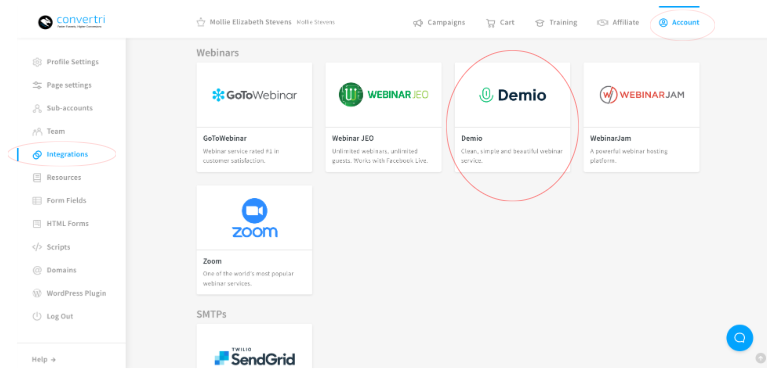
- Enter your Demio API key and API secret, which you can find in the Settings section of your Demio account. For more information on Demio, click the Overview tab.
- Click Save.
- Once your login has been verified, you’ll be redirected back to Integrations and you'll see a green checkmark underneath the Demio logo.
You can now use Demio in all the forms on your pages. If you wish to revoke your access, you can do so at any time by navigating back to this page, clicking Setup, and clicking the red link.
|
CTA: Button |
|---|
Setting Up A Form:
When you've connected your Demio account, you'll be able to connect any of your Demio lists to your Convertri pages.
You’ll also be able to:
- Capture custom details like phone numbers, company names, or interests.
- Pass additional details into Demio for use in personalized post-event messaging.
- Trigger other actions in tools like CRMs, Slack, or Google Sheets, powered by Zapier.
This article covers how to set up a form: Forms: Setup and Troubleshooting
Error Handling and Logging
If you encounter an error during integration, first verify that your API key and secret are correct. Convertri logs common API connection issues and will display error messages for failed authentication.
Try the following:
- Recheck for typos in your API credentials.
- Ensure your Demio account is active and has webinar event data created.
-
Contact the support team if the green checkmark does not appear after saving.
Testing the Integration
To verify the integration is working correctly:
- Publish a page with a connected form.
- Fill out the form with a test email address.
- Check your Demio account to ensure the contact is added to the correct webinar list.
Note: Sometimes it may take a minute or two for contacts to appear in Demio.
Best Practices
- Only use one integration method (API or Zapier) per form to avoid duplication.
- Double-check that your Demio event is live and accepting webinar registrants.
- Use clear field labels on forms to ensure accurate mapping to Demio fields.
- Test before launching any live campaigns to prevent missed event leads.
FAQs
-
Do I need to code to connect Demio to Convertri?
No coding is required. Just copy and paste your Demio API key and secret into the integration fields within Convertri.
-
Do I need a Pro account to use the Demio integration?
Yes. API integrations are available for users on Pro and Agency plans only.
-
Where can I find my Demio API key?
Log in to your Demio account, go to Settings, and click on the API tab. Your key and secret will be listed there.
-
Can I use Zapier instead of API?
Yes, Zapier is another option for integrating Demio with Convertri, though API offers a more direct and reliable connection.
-
Can I pass custom fields like phone or tags?
Currently, only standard fields are supported through the native API. For custom fields or tagging, consider using Zapier or a custom webhook.